
Short answer
To log in to the OCR, open the official site ocr.gov.np, follow the link to CAMIS (the Office of Company Registrar's online system) and sign in with the email or username and password you registered. New users first create an account with an email address and mobile number. The same login is used for name reservation, registration, annual returns and changes.

| Official website | ocr.gov.np (Office of Company Registrar, Government of Nepal) |
|---|---|
| Online system | CAMIS — used for company filings since Shrawan 2081 |
| Account needs | Email address and mobile number |
| Used for | Name reservation, incorporation, annual returns, amendments, records |
| Payment options | Online — eSewa, Khalti or bank, through the portal |
What is the OCR login and what is CAMIS?
The Office of Company Registrar (OCR) is the government office that registers and regulates companies in Nepal. Its website, ocr.gov.np, publishes notices, forms and fee schedules, and links to the online system companies use to file. That online system is called CAMIS, and since Shrawan 2081 it handles the full company incorporation file, from the name request to a digitally signed certificate.
When people search for “OCR login”, “ocr.gov.np login” or “company registrar login”, they usually mean signing in to CAMIS. You need an account there to reserve a name, upload the Memorandum and Articles of Association, pay fees, submit the annual return, record changes in directors or shares, and download certificates and documents.
If you are new to the OCR itself — what it does, where it is and what “OCR” and “CRO” stand for — start with our overview of the Office of Company Registrar in Nepal.
How to create an OCR (CAMIS) user account
- 1
Open ocr.gov.np
Go to the official OCR website and select the link for online services / CAMIS.
- 2
Choose to register as a new user
Enter your name, an email address you control and a mobile number. Use a long-term company or founder email — it becomes the recovery address for the account.
- 3
Verify your contact details
Confirm the verification code or link sent to your email or mobile. Accounts that are not verified cannot submit applications.
- 4
Set a strong password
Use a unique password and store it safely. Several people in a company should not share one personal login.
- 5
Sign in and complete your profile
Log in with the new credentials. You can now start a name reservation or link to an existing company where the portal allows it.
Professional firms filing for clients use their own accounts with a signed authority letter from the company. If we register your company, we can file through our account or help you set up yours so you have direct access afterwards.
What you can do after logging in
| Task | When you need it | More detail |
|---|---|---|
| Name reservation | Before registering a new company | How to check a company name before you apply |
| New company registration | Uploading MOA, AOA and shareholder details | Full registration walkthrough |
| Fee payment | After the OCR approves the file | Fee table by authorised capital |
| Certificate download | After payment | Reading and verifying your certificate |
| Annual return | Within 6 months of the fiscal year end | AGM and annual return deadlines |
| Changes (directors, shares, address, capital) | Whenever the company changes | Filed as an amendment with the board/AGM decision |
OCR login not working? Common problems and fixes
| Problem | Likely cause | What to try |
|---|---|---|
| Page does not load or keeps spinning | Heavy traffic near deadlines, or a temporary outage | Try outside office hours, check the OCR notice board, avoid repeated refreshes |
| “Invalid credentials” | Wrong email/username, caps lock, or an old password | Reset the password from the login page using the registered email |
| Verification code not received | Mobile number or email entered incorrectly; code expired | Wait a few minutes, check spam, request a new code; if the number is wrong the OCR must update it |
| Logged out while filling a form | Session timeout | Save drafts often and keep documents ready before you start |
| Document upload fails | File too large or in an unsupported format | Scan clearly at moderate resolution, use PDF/JPG as the portal specifies, and name files simply |
| Cannot see your company after signing in | The company is linked to a different user account | Ask whoever filed it (or us) to add access, or contact the OCR with the company's details |
Exact field names and limits change as the OCR updates CAMIS. If an error persists, note the message and contact the OCR helpdesk listed on ocr.gov.np.
application.ocr.gov.np, “www.ocr.login” and other old addresses
Many people still search for addresses like application.ocr.gov.np or “www.ocr.login”. The first was the entry point of the OCR's earlier online application system; the second is not an official address at all. Since the move to CAMIS, the safe approach is always to start from the home page at ocr.gov.np and follow the current link to the online system, rather than relying on old bookmarks or search results.
The same applies to company search. Searches such as “www.ocr.gov.np search” and “ocr company search” refer to the OCR's company lookup, which is explained in our guide to searching companies and registration numbers in Nepal.
Keep your company's OCR account secure
- Register the account in the name of a director or a long-term company email, not a junior employee's personal address.
- Do not share passwords with agents; give them an authority letter and let them file through their own account.
- Change the password when an employee who had access leaves.
- Keep a record of every submission number and payment receipt the portal generates.
- Review the company's details in the portal after every filing to make sure they match your records.
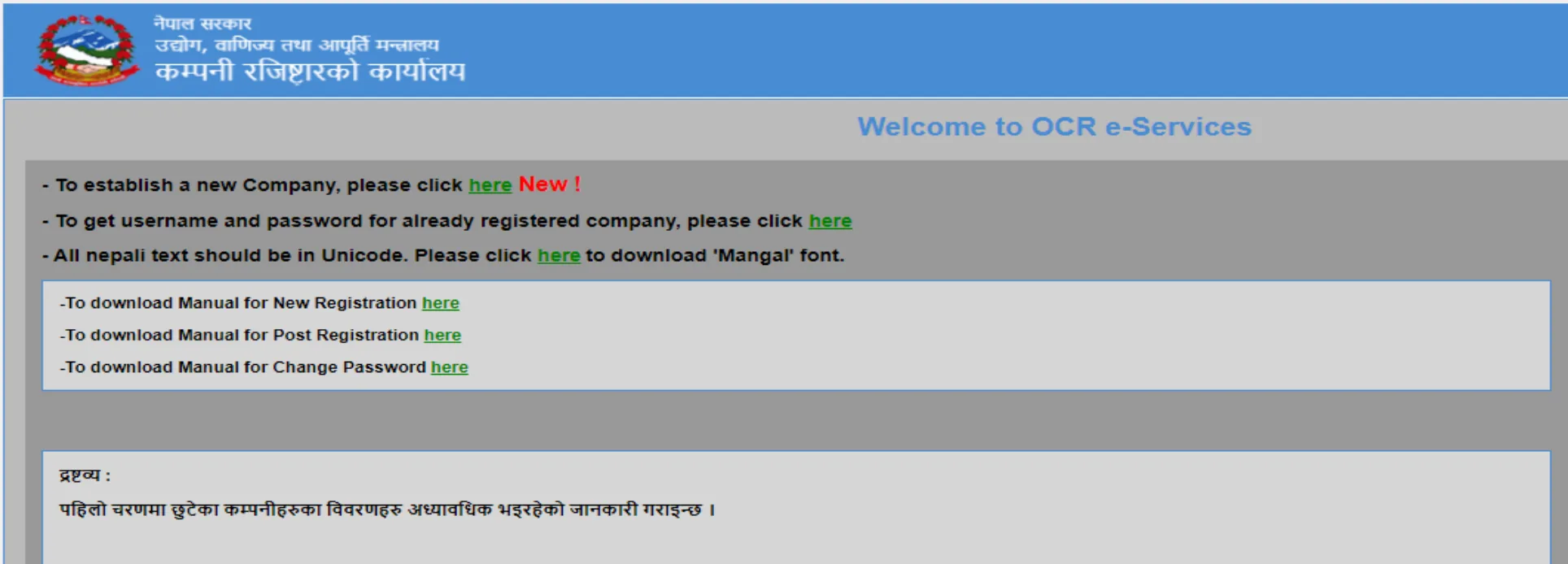
The OCR e-Services screens, step by step
These screenshots come from our own registration walkthrough. The OCR has redesigned parts of the portal since moving to CAMIS, so labels may differ slightly, but the sequence of steps is the same.
- 1
Open e-Services and start a new company
On the OCR e-Services page, use the link “To establish a new Company, please click here”. Manuals for new registration, post-registration and password change are on the same page. Nepali text must be typed in Unicode.
- 2
Create the e-Services user
Enter your full name, email address, phone number, gender, citizenship or passport number and the security code, accept the terms and click Create User.
- 3
Log in with the emailed password
Your email is the username and the password is sent to that email. Log in and change the password straight away.
- 4
Open Check Company Name
Choose the company type and enter the proposed name in English and Nepali, then add the objectives using NSIC codes.
- 5
Wait for the name decision
The OCR emails the result. If the name is too close to an existing one it is rejected and you submit another name; if it is approved you continue to the document stage.


Key takeaways
- Start every OCR login from the official site, ocr.gov.np, and follow the link to CAMIS.
- Create the account with a long-term email and mobile number you control — they are your recovery path.
- The same login handles name reservation, registration, annual returns and changes.
- Most login errors are solved by a password reset, a fresh verification code or trying outside peak hours.
- If you would rather not deal with the portal, our company registration team can file for you.
Frequently asked questions
What is the official OCR Nepal website?
The official website of the Office of Company Registrar is ocr.gov.np. Use it as the starting point for the online CAMIS system.
Is CAMIS the same as the OCR login?
Yes, in practice. CAMIS is the OCR's online system for company filings, and “OCR login” usually means signing in to it.
Can I register a company without logging in to the OCR myself?
Yes. An authorised representative can file on your behalf. We do this for clients under an authority letter and can also set up a login for you to keep.
I forgot my OCR password. What should I do?
Use the password reset option on the login page with your registered email. If you no longer have access to that email or mobile, the OCR has to update the contact details after verifying your identity.
Do I need to log in to search for a company?
Basic company lookups are available publicly on the OCR website; filing and downloading your own company's records requires a login.
Why does the OCR portal slow down at certain times?
Traffic peaks near filing deadlines, especially the annual return deadline about six months after the fiscal year end. File early to avoid it.
Sources and official references
Government fees and rules change with each Finance Act and OCR/IRD notice. We re-check the figures on this page regularly; confirm the latest amount with the office concerned or ask our team before you pay.